Monday, August 25, 2014

Open, Restore, Import....Understanding How and When to Use them


When working in Ancestral Quest it sometimes can get confusing as to how to access one's database of names, dates and places.

People have files that end in .paf, .aq, .ged, .zip, .aqz and wonder why they many not 'open' under an 'open' command.

The reason they many not open is that they need a different command to do just that. 

The "File" menu has this drop down where you will find all of the right commands to help you open up your database files:


The files that end in .paf and .aq will open up with File and Open and then locating that file, double click it and you'l have all your family file information right there.

If you have a .ged file, this is a GEDCOM file and needs to be imported into a blank database. So one creates a new database and then goes to File and scrolls to 'Import', clicks it and locates that .GED file and again double clicks it. Once that is done the file will import into that blank database file filling it up with whatever is in the GEDCOM file.

If you have a .zip or .aqz file, this is a back up file and needs to be restored. One needs to go to File and 'restore', clicks it and locates the zipped file and again double clicks it to restore your database files.

With the end goal to being able to access one's family database, it is helpful to use the correct commands depending on the type of file available and hopefully this blog has provided some help in doing just that!


Remember Ancestral Quest is fully FamilySearch Certified!


Comments and questions are always welcome!


Happy Ancestraling...

Claire ;)

AQ Cues & Clues Blog:http://ancquest.blogspot.com/

(c) 1994-2014 Incline Software, All Rights Reserved
 gfindlay@ancquest.com


Friday, August 15, 2014

Setting Your Preferences


Under the "Tools" drop down menu is where one can set some preferences with how they want their database to function. Once one scrolls down and clicks that option there is an array of tabs to choose from that allow changes to be made from the defaults that are pre-set in the program.

The first tab it defaults to in "General". Here you can say whether you want to attach RIN numbers or FamilySearch ID numbers to a person's name, have 'Quick Entry' set up which helps when entering in places as well as activating or not activating LDS features. Here is a screen shot:


You'll also note that one can adjust the color scheme and add a password if you wish. 


I usually don't use that password function as there are times one forgets and it is not that easy to retrieve it. Also note that there is a 'Help' box in case there is something under this tab that one is not sure how it functions. The "Help" function goes through each item and provides additional detailed information to help one decide whether to check it or not.

We'll cover the next couple of tabs in future blog posts!


Remember Ancestral Quest is fully FamilySearch Certified!


Comments and questions are always welcome!


Happy Ancestraling...

Claire ;)

AQ Cues & Clues Blog:http://ancquest.blogspot.com/

(c) 1994-2014 Incline Software, All Rights Reserved
 gfindlay@ancquest.com


Friday, August 8, 2014

Merging Duplicates Using AQ Intelligent Matching..


Merging individuals can be challenging if one is not quite sure how to proceed using this feature in Ancestral Quest.

Clicking on the Icon that looks like the one above will take you to the Merging screen which looks like this:


Taking a good look at this match/merge screen, one can choose how to proceed. In order to allow the program to find the duplicates, one can simply click on the "Enable Intelligent Matching" which will put a check in that box. 

You also can alter the way the program searches your database by clicking on "Options" which brings up the following menu or you can leave these settings as they are listed here:


The next step is to click "Next Match" which allows Ancestral Quest to search through your family files database and locate possible matches. Here is the first match it found from my own file:


Using the color coding at the top I see the entry that was on the left in Green and the entry that was on the right in Red, the Black shows what the resulting merge would look like in my family file database.

Looking close one can also see check marks and arrows. The "Legend" up in the right hand corner shows what those items mean:


If you want to change how the program is dealing with those items, one just clicks on the box and the mark that is in the box will disappear and that piece of information will just disappear. 

When you click on "Merge" the merge takes place and is reflected on the screen showing anything added to the notes or any changes to dates. The merge is now complete.

Clicking the next match allows you to continue with removing duplicates from your family file database and will continue to bring up duplicates until it finds no more. When done you simply click on "Close" and are returned to your program to continue with either research or whatever you wish to work on.

Take advantage of this great feature in Ancestral Quest to help you remove your duplicates!

Remember Ancestral Quest is fully FamilySearch Certified!


Comments and questions are always welcome!


Happy Ancestraling...

Claire ;)

AQ Cues & Clues Blog:http://ancquest.blogspot.com/

(c) 1994-2014 Incline Software, All Rights Reserved
 gfindlay@ancquest.com


Thursday, July 31, 2014

How to Remove Unwanted 'Unknown' Spouses


Sometimes when entering data one ends up with "unknown spouses", not sure why except that it happens. After doing research one realizes that there really is only one spouse not two or more so how does one fix this?

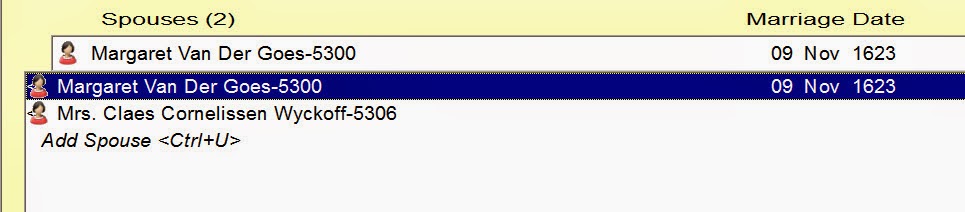
In the following example, there is no 'unknown' spouse married to Claes Cornelissen Van Schouwen:


One would think they could just delete the individual, however, when one right clicks on the individual to delete you end up with an UNKNOWN with no number so this is not the way to remove them.

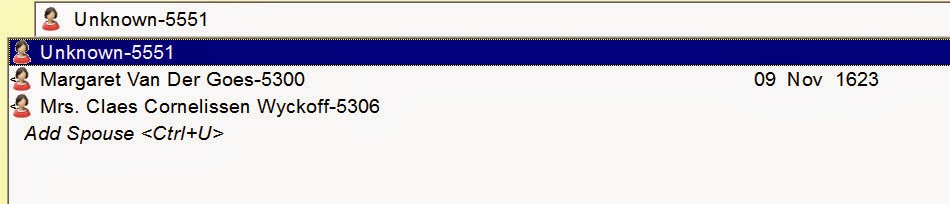
The best way to remove them is to give them the same name as one that is correct and merge them, once you have merged them the 'Unknown' is no longer there. Where you do this it will ask you if you want to "Add this spouse to the current marriage?" The answer is yes so that you can merge the entry with the one that is listed there and correct. Note the RIN number which in this case is #5551.


With just the name in the 'unknown' entry, I now have RIN # 5300 for Margaret Van Der Goes and RIN # 5551 for Margaret Van Der Goes which just has her name there.

Now go to the "Merge" function by clicking on the "Yield Sign" Icon at the top:


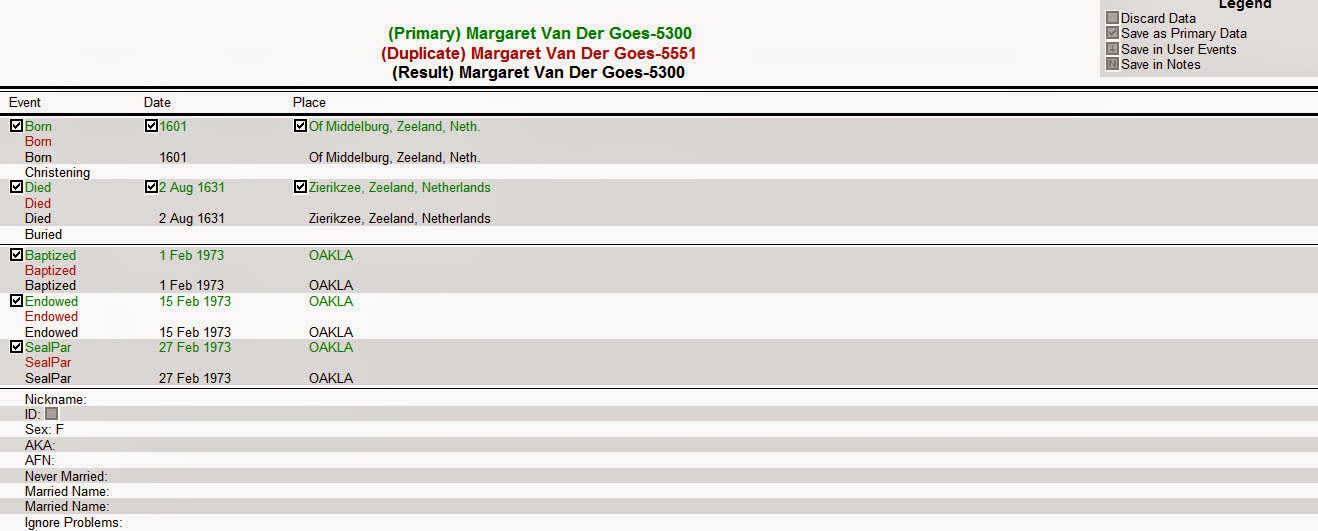
You are now able to merge RIN # 5300 and RIN # 5551 together to remove that 'unknown' spouse. Clicking this Icon opens up the 'Merge' Screen. Clicking on the "Search" box for the left side enter in the RIN number 5300 and clicking on the "Search" box on the right side enter in RIN number 5551, the end result looks like this:


Note that the original RIN # 5300 is in green and states it is the Primary person while the duplicate, RIN # 5551 and states it is the Duplicate person, is red, once they are merged it shows you in black what the final results of the merge will be. 

Now click on Merge and Close...the end result is no more 'Unknown'!


These steps can be repeated as needed to remove those unknown spouses...


Remember Ancestral Quest is fully FamilySearch Certified!


Comments and questions are always welcome!


Happy Ancestraling...

Claire ;)

AQ Cues & Clues Blog:http://ancquest.blogspot.com/

(c) 1994-2014 Incline Software, All Rights Reserved
 gfindlay@ancquest.com


Thursday, July 24, 2014

AQ: Parent child Relationships


Sometimes there are 'other' relationships between parents and children and knowing where to show that in Ancestral Quest makes it easy to state just what that relationship is.

The trick is putting the child in the primary position like this:


Next is to click on "Other Parents/Rel" which is immediately to the right of the child. This is the screen you'll see:


Note that you can adjust the relationship of the child to the Father and the Mother separately as well as verify that relationship. The choices are as follows:

Biological
Adopted
Step
Foster
Guardian


It is that simple to put in the correct relationship between parents and children!


Remember Ancestral Quest is fully FamilySearch Certified!


Comments and questions are always welcome!


Happy Ancestraling...

Claire ;)

AQ Cues & Clues Blog:http://ancquest.blogspot.com/

(c) 1994-2014 Incline Software, All Rights Reserved
 gfindlay@ancquest.com


Thursday, July 17, 2014

AQ: Updated Training Videos


New training videos have been added to the already long list of video tutorials available for users of Ancestral Quest!

Here is a breakdown of what's been added...

The Overview has been updated..

Classroom Topics presented on 12 April 2014 from the Utah Valley Technology and Genealogy Group (UVTAGG)


In future blogs we'll delve into each of these topics with some screen shots.

Remember to check these out one at a time when it is convenient.

Remember Ancestral Quest is fully FamilySearch Certified!


Comments and questions are always welcome!


Happy Ancestraling...

Claire ;)

AQ Cues & Clues Blog:http://ancquest.blogspot.com/

(c) 1994-2014 Incline Software, All Rights Reserved
 gfindlay@ancquest.com


Thursday, July 10, 2014

AQ: Getting Online Help


When it comes to learning how to use new software, the learning curve can be more than one expected and how to go from one step to another gets so confusing one might be tempted to just give up.

Ancestral Quest provides a number of tutorials to help all its users in a multiplicity of ways.

When you actually go into the program there are two locations to open up the link to those helpful videos and step by step processes. 

Once one opens up their Ancestral Quest family file, go to Help at the top above the icons and click on Video Tutorial:


When you click this link it will take you to our website where these tutorials are located.


The following tutorials and screen shots that are available are:


The next section where help is provided is under FamilySearch:


This section will help with learning how to work with FamilySearch Family Tree.


This section has the following online tutorials:

Supercharge Ancestral Quest and Family Tree with nFS: Video
Overview: Video
Overview: Screen Shots
Full Training Tutorial: Video
Full Training Tutorial for PAF Users: Video
Lynk and Sync Individuals: Video
Upload Data to Family Tree: Video
Finding Names for Temple Submission: Video
Training on LDS Temple Ordinance Reservation and Tracking System (ORTS)
-Full Training-Video
-ORTS Overview - PDF File
-ORTS Overview - Video

Take advantage of these tools to increase your ability of working in Ancestral Quest.


Remember Ancestral Quest is fully FamilySearch Certified!


Comments and questions are always welcome!


Happy Ancestraling...

Claire ;)

AQ Cues & Clues Blog:http://ancquest.blogspot.com/

(c) 1994-2014 Incline Software, All Rights Reserved
 gfindlay@ancquest.com