

Each days' work is valuable, yet, without thinking one can easily click a backup away or the backup is on the same computer as the genealogical/family history data. With all digital devices, it is a fact they all fail at some point in time, not knowing the when puts the emphasis on taking the necessary steps to make backups and copy files to a safe place.
In Ancestral Quest there is a way to tell the program to back up your files to a specific location, like a flash drive, drop box, google drive, iCloud or an external hard drive. When in the program simply go to Tools--> Preferences and click on the tab marked " Files and Folders". Once there take time to set up where to store your backup files.

Click on "Browse" and locate your external location, a flash drive, drop box, some place other than your own computer. Once you've located the place to put your files, you'll see the exact location to the right of "Backup", click "OK" and you are set. Each time you backup the file it will automatically back up to the chosen location.
On a separate note, copying any digital pictures and documents to perhaps the same location is also a wise idea. If something goes wrong with the computer, an electrical storm, an unexpected power serge, or even the computer is and old one your files and data are safely stored!
If you have to retrieve a file because something happened or you replaced your computer, you will simply need to copy the most recent backup to your new computer's document folder. Re-download the program from here: http://ancquest.com/ver15.htm, run and install it.
With the program open, go to File-->Restore you will look for the file you placed there and click "Open", then he "Save As" window will appear asking you where to save it and what name to give the file.
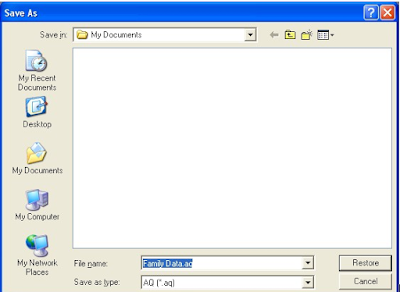
Once you fill in the information, click "Restore" and the file will be there. If you have done this on an existing computer, be sure to change the name as it will overwrite what may be there. Note: If you are on a new computer you'll need to establish the back up location once again.

Taking these precautions will allow you to continue your research knowing it will not disappear regardless of what may happen with the computer.
Take advantage of this and many other great features of Ancestral Quest 15 today, click here to purchase, download and start enjoying this great program which helps you grow your family tree with only a few clicks.
Remember Ancestral Quest is fully FamilySearch Certified!
Comments and questions are always welcome!
Happy Ancestraling...Claire ;)
AQ Cues & Clues Blog:http://ancquest.blogspot.com/
Facebook: https://www.facebook.com/AncQuest
(c) 1994-2019 Incline Software, All Rights Reserved
ancquest@ancquest.com
AQ Cues & Clues Blog:http://ancquest.blogspot.com/
Facebook: https://www.facebook.com/AncQuest
(c) 1994-2019 Incline Software, All Rights Reserved
ancquest@ancquest.com


