Friday, October 25, 2013

Accessing Your AQ Database using Dropbox


As one works with their genealogical database, it often is between the many other things one does in day, a week, a month or even longer depending on one's schedule. Opportunities of time sometime appear out of no where, taking advantage of these situations can be tricky.

Depending on where you are can determine whether you would be able to access your data files. Being at home really doesn't count unless you want to use a lap top while watching a favorite TV show instead of being at your main computer which is also another option and reason to use Dropbox.



Using Dropbox has become one of the easiest ways to manage both my own database and any additional documents and photos for my database. Currently I keep my Ancestral Quest database in Dropbox. This means no matter where I am, as long as I have internet access, I can access my database on my own lap top.

In addition, I can take photos with my smart phone and also add them into my Dropbox. Once I am home, the photos will automatically be there on my own computer because they are accessible through Dropbox. This is a tremendous help when traveling as I know my pictures are safe and I will be able to link them to my ancestors.

Creating a DropBox Account

To create an account go to http://www.dropbox.com and click the "Sign up" button to enter in your name, an email and a password. You can add other computers and an android to the one account and have everything linked together. You are allowed up to 2 GBs for free and of course they have additional storage for a price. 


Example of Dropbox Database on either your main desktop or a lap top...

With your Ancestral Quest program open, go to "File, "Save As" as shown below:
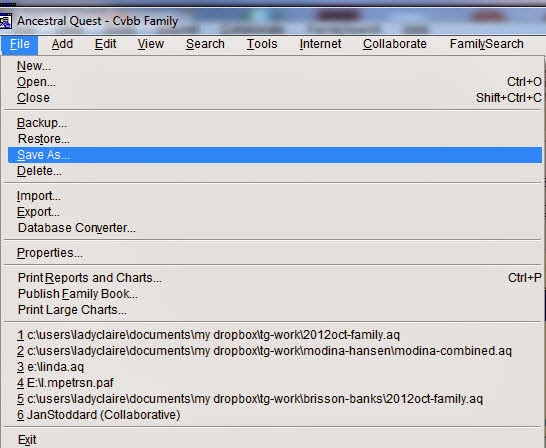


This will cause a new menu box to come up and allow you to determine where to save your AQ database file. It is at this point that you click the "dropdown arrow and change it to "My Dropbox", once you have selected that you can name the file the same name  you currently have or give your database a new name and click on "Save". This has now placed your current database file in your Dropbox file.

Close your Ancestral Quest program and re-open it, go to File, Open and look for your new file in the Dropbox where you just saved it. Once it is opened you'll always have it there and AQ will remember where to look for your file.

Remember comments and questions are always welcome!

Happy Ancestraling...

Claire ;) 
AQ Cues & Clues


(c) 1994-2013 Incline Software, All Rights Reserved
     gfindlay@ancquest.com

Wednesday, October 2, 2013

AQ Basics or AQ Full Version?


Choosing between Ancestral Quest Basics and Ancestral Quest Full Version can prove to be confusing. Sometimes one requires time to check out a program and to see if the program is for them. 

Ancestral Quest runs on the Windows operating system and provides a way for anyone doing genealogical or family history research to record their findings. This program is easy to learn and packed with many wonderful features. 

For individuals who were using PAF, it is an easy switch over as it was created from the code provided by Incline software in 1999 making users feel right at home using the screens, reports and other functions that are so familiar to them.

Ancestral Quest (AQ) was also the first desktop family tree program to be certified to access, update and sync with the family tree database of new.familysearch and is now Family Tree Share Certified to work with the new Family Tree.  To add to the value of AQ, it is the only software certified to share data between PAF 5 and the FamilySearch Family Tree! 

So just what is the difference between the two programs besides the cost? AQ has developed a chart to help you decide which program is for you. 


The list covers over 5 pages of various features in these categories:
  • Research
  • Family Search Family Tree Compatibility
  • Notes and Sources
  • Multimedia / Scrapbook
  • Internet
  • Navigation
  • Tools
  • Merging
  • Language
  • Collaboration
  • Technical Support


We think you will be amazed at all the features and great tools available in Ancestral Quest. Combining this with the ease of use and technical support is a win win for all!

Remember comments and questions are always welcome!

Happy Ancestraling...

Claire ;) 
AQ Cues & Clues


(c) 1994-2013 Incline Software, All Rights Reserved
     gfindlay@ancquest.com


Wednesday, September 25, 2013

Product Support: Just How Important It Is...


Today as in the past, customer service for a product is just as important as the product itself and yet throughout the world this function of a business often gets lesser attention.

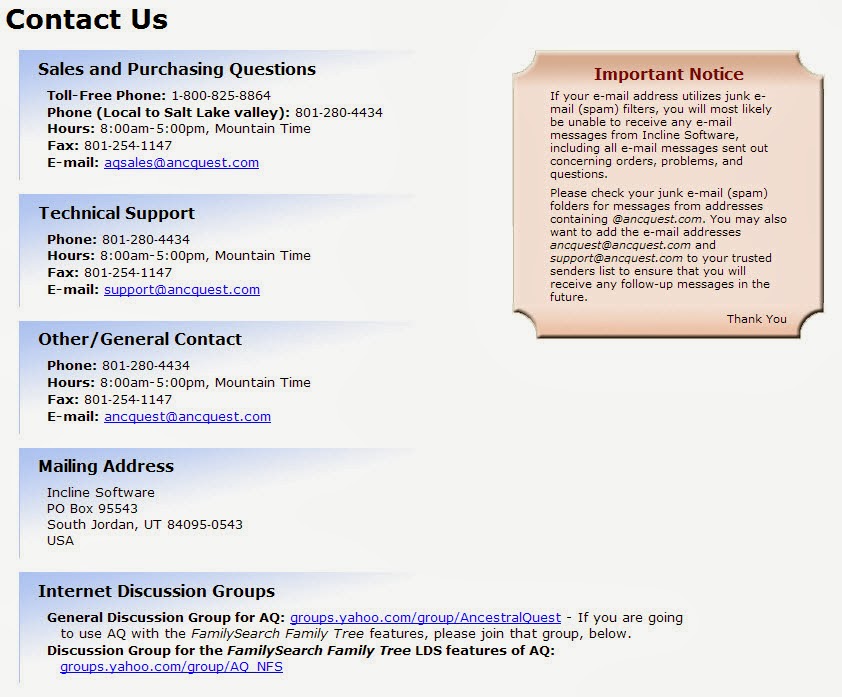
Ancestral Quest provides multiple types of customer service for those who use this "Easy to Use" software to manage their genealogical database. When you first go to the home page of the website at http://www.ancquest.com, there are 2 sections one can choose to go for help, "Support", and "Contact Us". Depending on your individual need and how you handle a problem will determine your next step. Click on "Contact Us" brings up the following screen:


At this point, depending on the type of problem, one can choose the method of contact, however, each method will get help for their software problem.

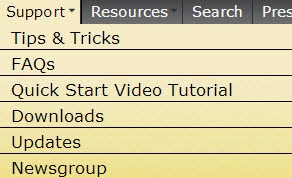
If you are the type that likes to try and figure out things for themselves, the section under "Support" could be the way to go. This is what is available under this menu item:


Each item in this list provides a different set of helps for all AQ users. The "Tips & Tricks" section covers a variety of topics beginning with "Distributing Your Multimedia Genealogy CD" and a variety of other help topics.

FAQ's covers a long list of questions from General Program Questions to a special section on PAF and AQ and additional technical questions.

The next item was just written up in AQ Will Do, and it described how to get to these videos from within the AQ program itself. The Updates section provides a way to re-down load your program if needed along with 2 sample databases. The Newsgroup will allow you to join with other AQ users who discuss various aspects of AQ and provide community help to one another.

When it comes to support and customer service, choose the best way to handle your needs but know AQ is there to help with software and technical needs in multiple ways.

Remember comments and questions are always welcome!

Happy Ancestraling...

Claire ;) 
AQ Cues & Clues


(c) 1994-2013 Incline Software, All Rights Reserved
     gfindlay@ancquest.com


Wednesday, September 18, 2013

Colors Can Make a Difference


When it comes to organization, one of the easiest and yet least thought of is using color to help identify various lines.

I teach a class about a system of color coding developed by my dear friend, Mary Hill, many years ago that helps one to keep files and documents organized by colors. This process once set up works very well, however, it can be a daunting task for anyone who has been doing genealogy for a long time. Mary's advice as well as mine would be to do this over a period of time. She has information on this system set up through "FamilyRoots Organizer", while some of the links are not working, there are enough sections working to see how it works.

Ancestral Quest follows the same color patterns set up in this same system, the colors are:

Blue for the Father's Father

Green for the Father's Mother

Red for Mother's Father

Yellow for Mother's Mother


To get to the color coding section is under the "Tools" drop down menu, it is the 5th in the list. Once you click "Color Coding" this is the window that opens up for you:


If you notice the color chart in the upper right hand corner, the colors match the above list although the colors are lighter. Note that the "Set standard ancestral colors" is selected.

You can make changes here but if you are using this system you will always know which line you are in as you work in your database. Note that the colors are set according to the individual who is set in primary position.

This coloring can follow into the printed fan charts too.


Take advantage of these tools to help you as you work in your database, it helps a lot especially as you work on various lines.

Remember comments and questions are always welcome!

Happy Ancestraling...

Claire ;) 
AQ Cues & Clues

Blog: https://www.facebook.com/AncQuest
Facebook: https://www.facebook.com/AncQuest  
Twitter: www.twitter.com/ancquest
YouTube: http://www.youtube.com/inclinesoftware

(c) 1994-2013 Incline Software, All Rights Reserved
     gfindlay@ancquest.com


Tuesday, September 17, 2013

Enter Data Quicker with Keyboard Shortcuts


Beyond the "Quick Place Entry" in Ancestral Quest there are additional ways to speed up the entry of family and source information.

Actual data entry can be cumbersome and seem to take forever, but with the implementation of keyboard shortcuts and the ones that are part of AQ, this process can be enhanced greatly.

There are 3 different types of shortcuts in AQ:
  1. Keyboard shortcuts and mnemonics
  2. ditto abilities
  3. quick entry
Most of us are attached to the mouse and often don't realize that there are quicker keyboard shortcuts that are done without the use of the mouse. While the mouse will do those things, the time it takes to remove ones' hands from the keyboard and use the mouse for a specific command, will consistently take additional time. Using the standard Windows shortcuts are  throughout all the Ancestral screens. Looking at the top menu, "File, Add, Edit, View, Search, Tools, Internet, Collaborate and Help" all have underlines under specific letters which when combined with the "Control" key will take you to those drop down menus.


Within each drop down the keyboard shortcuts are listed there for easy reference. This is the drop-down menu under 'Add'.


In the 'add screen' you can see the _ within the label for each field:


As you carefully look at the data entry screen above, you will easily notice that various letters are underlined, for quick data entry. Holding down the "ALT" key plus that letter will take you to that field or you can use "Tab" to get to the next field, either way it is very easy between the quick entry and using the short cut keys to enter an ancestor's information.

The last item worth mentioning is "Ditto". Within the entry screen above there is a "Ditto" drop down menu which looks like this:


This is where you are able to copy records within the family. If the information is the same in that field in the father, mother or older sibling, you just use the combination listed and it will populate that field with their information saving you having to type it in.

In my case, I was born in the same location as my dad, so when I enter my birth place I would simply hold down the "Shift" key and the F8 together, this will put my dad's birth location in that same field for me. This is definitely a time saver and once you do this a few times you will remember the combination of keys.

The Ditto Down key is a little bit different in that it copies from the screen you are in. So if the place of birth and death are the same, hitting the "F9" key at the death place will copy that information into the death field, again saving you data entry time.

Of course one can still use the "Quick Entry Place" as mentioned in yesterdays blog, this list is compiled as one builds their database and the program will remember the place combinations as you begin to type them in.

Hopefully this has been helpful to those struggling with adding in new and/or a lot of data.

Remember comments and suggestions are always welcomed!

Happy Ancestraling...

Claire ;)
AQ Cues & Clues

Blog: https://www.facebook.com/AncQuest
Facebook: https://www.facebook.com/AncQuest
Twitter: www.twitter.com/ancquest
YouTube: http://www.youtube.com/inclinesoftware

(c) 1994-2013 Incline Software, All Rights Reserved
     gfindlay@ancquest.com

Monday, September 16, 2013

Data Entry and Data Helps


Entering data can be a long drawn out process and yet it is necessary to record all the family births, marriages and deaths along with many other life events. To help with this process, Ancestral Quest has a "Quick Entry Place" feature which can speed up the entry of locations. It is actually located under "Edit" on the toolbar at the top of the program.

Sometimes this quick entry is a good thing as once you have entered in the actual location an event happened, it will automatically populate it if it is the same as you begin to type the location. There are pros and cons for this feature and it is good to note that it can be turned off if one wishes. In addition, you are also able to edit the "Quick Entry" section if you happen to have made a typo while entering in the locations.

To Edit this feature, go to "Edit" at the top tool bar, scroll and click "Quick Entry Place List", the following screen will come up:


To remove a listing, start typing the location, once you've located the entry, either edit it or delete it and you should be all set from that point forward.

If you don't wish to use this feature, you can easily turn it off by going to "Tools" in the same toolbar, scroll and click on "Preferences":


One can choose from "Use Quick Entry (Advanced) and/or "Use Quick Entry (Simple). There is a difference between the two. The Simple version will fill in a place name from a list of completed places that you have recently entered as AQ remembers the last 30 place entered in the order of city, county , state or province and then country.

The Advanced version will fill in the place names from a list of completed places that have already been entered and built up over time slowly by the same fields as listed above.

If you don't want either of these then simply remove the check in the check box and it will not work. There are occasions when one may want to do this, but overall I have found it to be a great time saver.

To see this in action, go to the AQ Quick Start Video and click on the "Quick Start - Entering a Family" located on the left side menu.

Tomorrow we'll discuss some additional shortcuts when dealing with data entry.

Happy Ancestraling...

Claire ;)
AQ Cues & Clues

Blog: https://www.facebook.com/AncQuest
Facebook: https://www.facebook.com/AncQuest
Twitter: www.twitter.com/ancquest
YouTube: http://www.youtube.com/inclinesoftware

(c) 1994-2013 Incline Software, All Rights Reserved
     gfindlay@ancquest.com


Saturday, September 14, 2013

PAF -> AQ: An Easy Switch-over...


You've finally made up your mind and decide to switch-over to Ancestral Quest so what now?

It really is rather simple and will not take long before you wonder why you took so long to decide. The program can be purchased at this time with a $10 discount here. Of course you could still be a tiny bit unsure and use Ancestral Basics for a trial run, that is perfectly fine, just click here.

Regardless of whether you are using the trial version or the full version the process is the same. Once you download the software and install it on your computer, opening the program will be the next step.


You should see a screen shot like this one on the left. With that "open" area selected you will have the opportunity to open up your PAF file right inside the Ancestral Quest program, this is one of the reasons nothing is lost.

Spend sometime in the new program, check out where various icons lead you and what is in the program, while the look and feel is similar to PAF there are many new and additional features combined with ones you are have been using all along. While in this PAF mode, you will have most of the AQ functionality but not all, there are some limitations. Note that if you are using AQ Basics, it will ask you to register your key which would be the way to get the full version, however, you can still go on and use the Basic version. If you have purchased the full version, a key would have been emailed to you and it is installed by clicking on "Help" and scrolling down to "Register Ancestral Quest" as shown here:


If you close out your file at this point, nothing will have changed in your PAF file as you did not convert it, however, if you are ready to go forward and convert your PAF database go to the on the file menu and scroll down to "Database Converter" as shown below:


Once you have saved your PAF file as an AQ file, all the functionality of AQ will completely work for you. With all your file in tact you are now ready to continue your research and working with your new program. 

Ancestral Quest has some online tutorials in their Learning Center to help an individual get more familiar with many of the new features, to go there click here. 

If there are still questions or one is unable to figure out something, there is an FAQ section here and a "Contact Us" area which includes contact by phone, email, mail or as part of a forum, either way, problems and difficulties are addressed everyday as quickly as possible.

Happy Ancestraling...

Claire ;) 
AQ Cues & Clues

Blog: https://www.facebook.com/AncQuest
Facebook: https://www.facebook.com/AncQuest  
Twitter: www.twitter.com/ancquest
YouTube: http://www.youtube.com/inclinesoftware

(c) 1994-2013 Incline Software, All Rights Reserved
     gfindlay@ancquest.com