Showing posts with label GEDCOM. Show all posts

Monday, August 8, 2016

AQ and Apps


Regardless of what device you use the most, its likely that many have multiple devices and with that comes the need for interconnectivity.

Currently Ancestral Quest works on both a PC and a MAC operating systems with each having their own requirements. These requirements are found on our website here.

Additional devices can be handled through other 3rd party entities which are found listed on our website under "Add-Ons". 


For Apple devices we suggest FamViewer and GedView and for Android devices we suggest Family Bee and GedStar Pro.

Each of these programs will allow you to view your genealogical data on a specific device and the steps to do this are provided from each application's instructions.

They all work with a Gedcom file that is produced by your software. By reading each application's website and information one can upload the Gedcom to the digital device.

The advantages are that you always have your genealogical files with you to show and share with other family members.

Enjoy this and other 'Add Ons' for Ancestral Quest!

Remember Ancestral Quest is fully FamilySearch Certified!


Comments and questions are always welcome!


Happy Ancestraling...Claire ;)


AQ Cues & Clues Blog:http://ancquest.blogspot.com/

(c) 1994-2016 Incline Software, All Rights Reserved
 gfindlay@ancquest.com


Friday, March 25, 2016

Importing Ancestors from FamilySearch FamilyTree


Ancestral Quest links and syncs with FamilySearch Family Tree. This feature allows individuals to either download from Family Tree or upload to Family Tree, both are great helps with family history.

Some individuals have actually saved considerable time by entering their own name, linking themself to FamilyTree and then downloading multiple generations if their family lines are there in FamilySearch Family Tree. This saves them from having to re-enter everything into a new database/family file. 

To begin the process of downloading information from FamilySearch Family Tree, make sure you have your own family file open:
  1. Click on "FamilySearch" in the menu at the top
  2. Highlight the person's ancestors you wish to import backwards from and write down the FS PID number
  3. Scroll down and click on 'Import Family Lines'
  4. At this point you'll be promted to enter in your user name and log in  for FamilySearch.org if you haven't logged in yet
  5. This brings up the following screen:

At this point, you'll need to make sure you have the radio dot in the "Download Ancestors of FamilySearch Person and then enter in their FS PID number. 

Determine the following:
  1. How many generations to import
  2. Include families
  3. Include Spouses of children
  4. Import Place Names as 'Standardized by FamilySearch' or as 'Entered'
Once the above are selected, click 'OK' and the system will start the process. Depending on the number of individuals and generations it could take a short time or a long time. The bigger the import the longer it will take.

It is always recommend to back up your database before doing this feature. 

Another thought is to do this into a separate database in order to check and verify it is indeed your family. Once you have done this you can easily import it into your database by creating a Gedcom file of that data and bringing it into your current full family file/database.

Next week we'll share how to upload your family data to FamilySearch.org.

Remember Ancestral Quest is fully FamilySearch Certified!


Comments and questions are always welcome!


Happy Ancestraling...Claire ;)


AQ Cues & Clues Blog:http://ancquest.blogspot.com/

(c) 1994-2016 Incline Software, All Rights Reserved
 gfindlay@ancquest.com


Tuesday, October 28, 2014

A GEDCOM File: One of the Ways to Share Your Genealogy Files


The above is the symbol for sharing...there is no symbol for GEDCOM and yet that is one of things you can do when you create a GEDCOM file from your own family file database.

Most people know that sharing genealogical information can be difficult. If one shares a paper family group sheet or a typed on, the chances of that information being retyped incorrectly, even accidentally is great. 

Back in 1984, GEDCOM was developed by The Church of Jesus Christ of Latter-day Saints and an aid to overcoming obstacles of sharing genealogical information with others.

GEDCOM stands for "Genealogical Data Communication" and is a simple plain text file that contains one's family information.

Over time, all genealogical software programs supported the ability to create a GEDCOM file within the features of that software program and became the standard for many years with some improvements along the way. There has been efforts to improve this file exchange but as of now it is still the industry standard. Wikipedia has a great article on it worth reading if one is interested in the history of this file format.

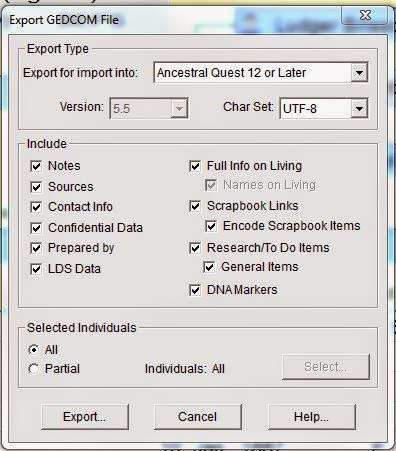
To create a GEDCOM in Ancestral Quest, one simply goes to "File" and "Export" and uses the menu box that comes up to choose what and what not to include in the actual export of the family file. This is how it looks:


Presently all the boxes are checked, but in reality one would need to be very careful of what to allow. For instance, unchecking "Full Info on Living" might be appropriate if you don't wish to share living information. "Confidential Data" and perhaps "LDS Data" should be unchecked depending on who one is sharing with.

Notice that one can also choose to only send a family or just a small amount of individuals by clicking on the "Partial" and then "Select" button. This would allow one to pick and choose only those in the family file wanting to be shared with that particular person.

"All" might be used if one was uploading their family file to an online database like Ancestry.com or MyHeritage.com and any others. One would still have to be careful not to share "Living Information" especially without their permission.

From this point after you have made your selections, click on "Export" at this point you will given the ability to name your file and press "Export" one more time so it can create your file. The usual place that these files are saved in is "My Documents", however, you can change it to wherever you wish it to be saved.

Once this is created, it now can be shared either with another person or an online database as mentioned already.

That is how simple it is. Next week we'll discuss what to do with a GEDCOM file you receive.


Remember Ancestral Quest is fully FamilySearch Certified!


Comments and questions are always welcome!


Happy Ancestraling...

Claire ;)

AQ Cues & Clues Blog:http://ancquest.blogspot.com/


Thursday, September 12, 2013

PAF to AQ: No GEDCOM Necessary


As many genealogists and family historians know, PAF has been a mainstay since June, 1999 and for some, still is, in spite of the fact that it hasn't been supported or improved in a very long time.

On July 15th, 2013, FamilySearch.org displayed the following announcement for all PAF users:


The history of PAF and AQ goes back to 1997 when PAF 3 was introduced with a different database structure. This prompted AQ 3.0 to have the ability to work with that new database structure. In 1999, PAF 4 and PAF 5 were created from the code provided to FamilySearch by Incline Software, in fact, PAF 4 was nearly identical to AQ 3.0 except for the different name and a few other minor variations. PAF 5 was last released in 2002, yet AQ has continued to improve and provide many new features that have made it a winner of multiple awards over the years.

Switching over to AQ is as simple as opening up your PAF database from within Ancestral Quest, there is no GEDCOM files to create and import, nothing will be lost, and you will feel like you are working in PAF with a long list of improved features!

Take advantage now of this easy switch over and the limited time offer for PAF users today!

Happy Ancestraling...

Claire ;)
AQ Cues & Clues

Blog: https://www.facebook.com/AncQuest
Facebook: https://www.facebook.com/AncQuest
Twitter: www.twitter.com/ancquest
YouTube: http://www.youtube.com/inclinesoftware

(c) 1994-2013 Incline Software, All Rights Reserved
     gfindlay@ancquest.com